Assets
The Assets module tracks physical and virtual IT equipment across all your clients, including servers, workstations, network devices, and more.
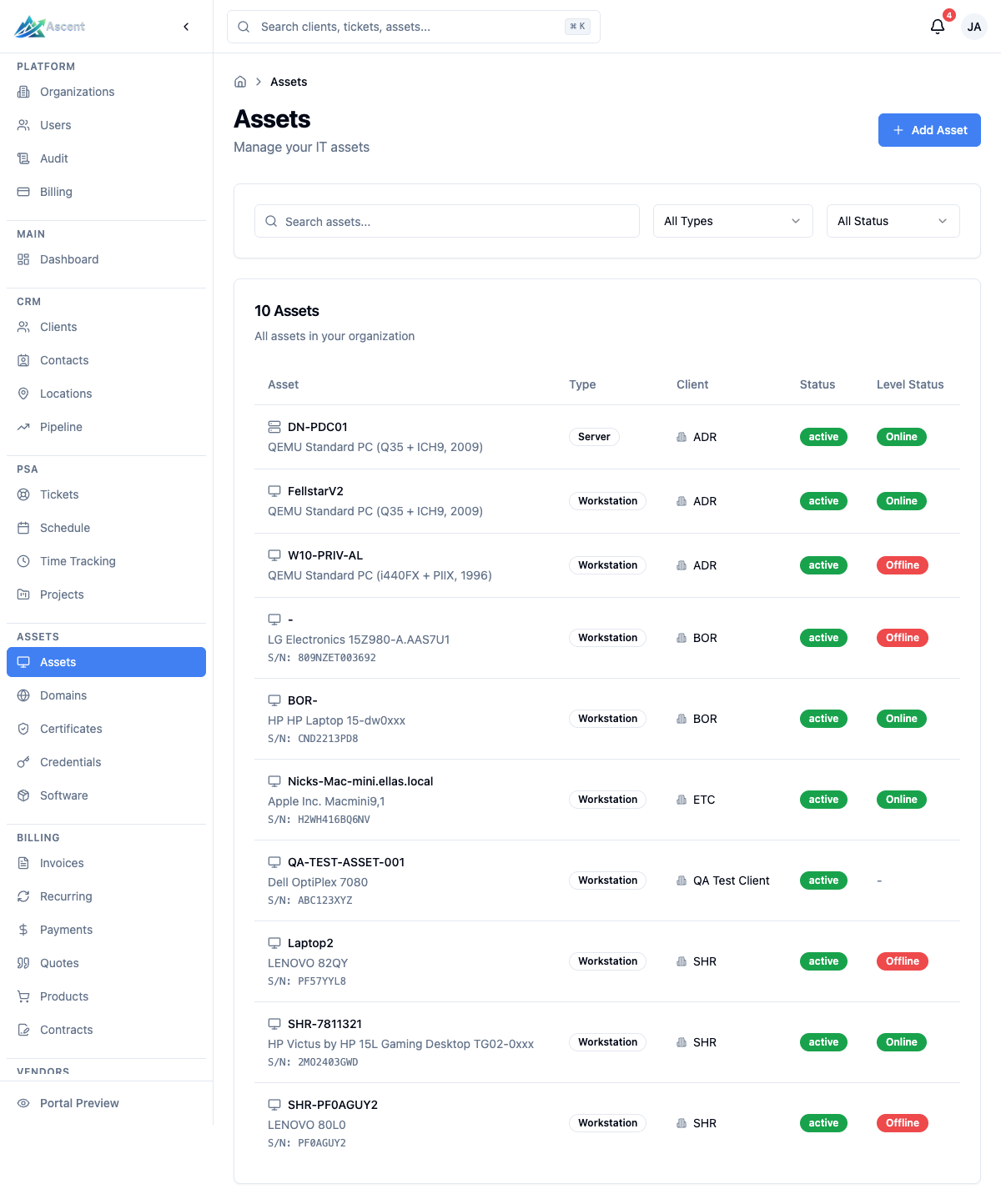
Overview
Track and manage:
- Servers and workstations
- Network devices (routers, switches, firewalls)
- Printers and peripherals
- Mobile devices
- Virtual machines
- Cloud resources
Viewing Assets
Navigate to Assets → Assets to see your asset inventory.
Asset List
The asset list displays:
| Column | Description |
|---|---|
| Asset | Name and model |
| Type | Server, Workstation, Network, etc. |
| Client | Owner of the asset |
| Status | Active, Inactive, Retired |
| Level Status | Online/Offline (from RMM) |
Filtering Assets
Filter by:
- Type - Server, Workstation, Network, etc.
- Status - Active, Inactive, Retired
- Client - Specific client
- Location - Specific site
Asset Types
| Type | Description |
|---|---|
| Server | Physical or virtual servers |
| Workstation | Desktop computers |
| Laptop | Portable computers |
| Network | Routers, switches, firewalls |
| Printer | Printers and MFPs |
| Mobile | Phones and tablets |
| Other | Misc. equipment |
Creating an Asset
- Click + Add Asset
- Enter asset details:
- Name - Asset identifier
- Type - Category of asset
- Client - Owner
- Location - Physical location
- Manufacturer - Make/brand
- Model - Model number
- Serial Number - S/N
- Purchase Date - When acquired
- Warranty Expiration - Warranty end date
- Add optional details:
- Assigned contact
- Notes
- Custom fields
- Click Save
Asset Detail Page
Click an asset to view full details:
Overview
- Basic information
- Status and health
- RMM status (if integrated)
Specifications
- Hardware details
- Operating system
- Installed software
History
- Changes to the asset
- Past tickets
- Audit trail
Tickets
- Related support tickets
- Create new tickets for this asset
Notes
- Internal documentation
- Configuration notes
RMM Integration
When integrated with RMM tools (like Level):
- Assets sync automatically
- Real-time status updates
- Performance metrics
- Alert correlation
Status Indicators
| Status | Meaning |
|---|---|
| 🟢 Online | Asset is connected and healthy |
| 🔴 Offline | Asset is not responding |
| ⚪ Unknown | No RMM agent or sync |
Warranty Tracking
Track warranty status:
- Purchase date
- Warranty expiration
- Warranty provider
- Support contract info
Warranty Alerts
Set up alerts for expiring warranties to plan renewals.
Lifecycle Management
Track asset lifecycle:
- Procurement - Asset acquired
- Deployment - Put into service
- Active - In use
- Maintenance - Under repair
- Retired - End of life
Reporting
Asset reports include:
- Inventory by client
- Assets by type
- Warranty expiration report
- Aging equipment report
Best Practices
- Complete records - Fill in all known details
- Use serial numbers - Essential for support
- Track warranties - Know what's covered
- Link to contacts - Know who uses each asset
- Regular audits - Verify asset data accuracy
- Document configs - Store configuration details