Credentials
The Credentials module is an encrypted vault for storing passwords, OTP/2FA secrets, and login details, and for linking each credential to the clients, assets, contacts, software, vendors, and services it belongs to.
Overview
The Credentials vault lets you:
- Store a named login with an optional username, password, OTP/2FA secret, URL, and notes
- Associate each credential with a client and, optionally, a specific contact
- Link credentials to assets, contacts, software, vendors, and services
- Reveal and copy the stored password to the clipboard on demand — gated by a dedicated reveal permission and recorded as a distinct audit event
- Optionally require step-up re-authentication before a secret can be revealed
- Track when each credential was last rotated and flag credentials that are overdue for rotation
- Review a credential's access & rotation history — who revealed it and when, and when its password was changed
- Generate live TOTP (2FA) codes for credentials that have an OTP secret
- Generate a strong random password when creating a new credential
Navigate to Credentials
Go to Knowledge base → Credentials (/credentials) to see the credential list.
Security model
Credentials are encrypted before they are written to the database. The vault uses:
- AES-256-GCM authenticated encryption for the stored password and OTP secret.
- A per-organization derived key. The key is derived with HKDF-SHA256 from a master key held by the operator (stored in the environment/secret store) and a random salt unique to your organization (stored in the database). Both inputs are required to decrypt, so a database dump alone — or a leaked master key alone — cannot reveal credentials.
The password and otpSecret columns are stored as encrypted bytes; the username, URL, and notes are stored as plain fields. This is an operator-held key model, not zero-knowledge encryption. For the full threat model and what each compromise scenario does and does not expose, see Trust & Security Overview.
Access control and auditing
- All credential endpoints require an authenticated organization session, but viewing a credential and revealing its secret are now separate rights. Opening a credential's detail page shows only its metadata (name, username, URL, notes, rotation status, and whether a 2FA secret is stored) — the password and OTP secret are no longer returned automatically.
- Revealing the actual password / OTP secret, generating a live 2FA code, and viewing a credential's history all require the
credentials.revealpermission. You can grant a technician read access to the vault (so they can find and link credentials) without granting them the ability to see the plaintext. - Every reveal is recorded in the audit log as a distinct
REVEALevent — separate from the genericACCESSevents used elsewhere — so "who revealed this secret, and when" is directly answerable under Admin → Audit Logs. The log notes that the password (and OTP secret, if present) were revealed and whether a step-up re-authentication was required; the secret values themselves are never written to the log. Create, update, delete, link, and unlink actions are logged as well, and a password change is recorded as a rotation. - Decryption happens server-side and only at the moment of a reveal (or when a 2FA code is generated). The stored secret is never written to the audit log.
Require re-authentication to reveal (step-up)
Org admins can require users to re-authenticate before a credential's secret is revealed. Turn it on under Settings → Security with Require re-authentication to reveal (off by default). When enabled, revealing a secret prompts the user to confirm their identity with their passkey (the strongest option, offered first when one is registered), their own account password, or a current 2FA code; the reveal proceeds only if that proof checks out, and a failed proof is rejected. Single-sign-on users who have a passkey can confirm with it directly — they are never forced to enroll a weaker factor. This adds a "prove it's still you" gate on the most sensitive action in the vault — useful for shared workstations or higher-assurance environments. The toggle itself is recorded in the audit log as a security-settings change.
The credential list
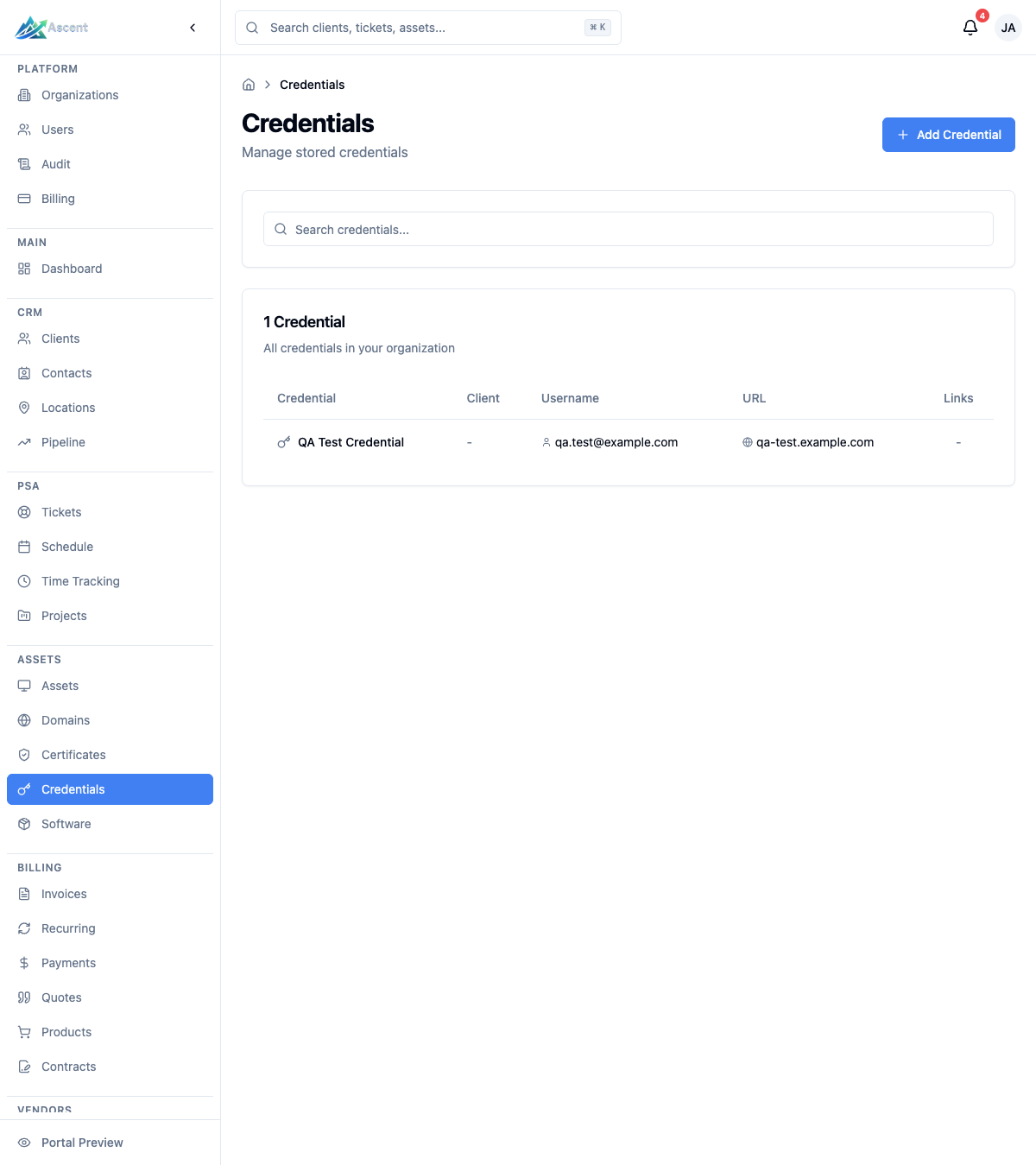
The list is searchable and paginated (25 per page) and shows the following columns:
| Column | Description |
|---|---|
| Credential | The credential name (links to its detail page) |
| Client | The associated client, if any |
| Username | The stored username, if any |
| URL | The login URL's hostname, if set (opens in a new tab) |
| Links | Counts of linked assets and software |
Use the Search credentials... box to filter by name. The list never displays passwords or OTP secrets — those appear only on the detail page after you reveal them.
Adding a credential
- Click Add Credential.
- Under Credential Information, enter a Credential Name (required) and optionally choose a Client. If a client is selected, you can also pick an Associated Contact.
- Under Login Credentials, fill in the secret fields:
- Username / Email (optional)
- Password (required) — toggle visibility with the eye icon, or click Generate to create a strong 20-character random password
- OTP / 2FA Secret (optional) — the base32 secret used to generate TOTP codes
- Login URL (optional)
- Add any Notes if needed.
- Optionally set a Rotation interval (days) — the cadence after which the credential should be rotated. The vault stamps the rotation date on save and flags the credential as overdue once this many days pass since the last password change. Leave it blank for no rotation reminder.
- Click Create Credential.
When you start a new credential from an asset page, the credential is automatically linked to that asset on save, and the client is pre-filled from the asset.
Credential fields
| Field | Required | Notes |
|---|---|---|
| Credential Name | Yes | Descriptive name for the login |
| Client | No | Owning client |
| Associated Contact | No | Only selectable after a client is chosen |
| Username / Email | No | Stored in plain text |
| Password | Yes | Encrypted at rest |
| OTP / 2FA Secret | No | Base32 secret; encrypted at rest |
| Login URL | No | Must be a valid URL |
| Notes | No | Free-form text, stored in plain text |
| Rotation interval (days) | No | Optional cadence (1–3650 days); flags the credential as overdue once that many days pass since the last password change |
The credential detail page
The detail page shows a credential's metadata by default; the secret values are loaded only when you reveal them. It includes:
- Stat cards showing how many assets, contacts, software items, vendors, and services are linked.
- Credential Details with the username and URL shown directly. The password and OTP secret are not loaded with the page — click Reveal to fetch and display them (each value then has a copy button). Revealing requires the
credentials.revealpermission and records aREVEALaudit event; if your organization requires step-up re-authentication, you are prompted to confirm with your passkey, account password, or a current 2FA code first. If you only have read access, the Reveal button is unavailable. - 2FA Code panel (shown only when an OTP secret is stored — indicated by
hasOtpSecreton the credential) with the current TOTP code, a countdown showing when it expires, and a refresh button. Generating a live code also requirescredentials.revealand is logged as aREVEALevent. The code updates automatically as the period elapses. - Rotation status showing when the password was last rotated, the configured rotation interval, and the next due date. A credential that has passed its interval is flagged as overdue so it stands out.
- Access & rotation history — the credential's audit trail, listing each reveal (who and when, with IP address) and each password rotation. This panel requires
credentials.reveal. No secret values are ever shown in the history. - Notes, when present.
- Linked items tabs for Assets, Software, and Vendors that have links.
- A Details sidebar with the client, associated contact, and created / last-updated timestamps, plus any Tags.
Use Edit to change the credential or Delete to permanently remove it. Editing the password stamps a new rotation date (clearing any "overdue" flag for the new interval); the previous plaintext is never retained. Deleting a credential also removes all of its links and cannot be undone.
Linking credentials
A credential can be linked to multiple records so it surfaces wherever it is relevant:
- Assets — e.g. a server's admin login
- Contacts
- Software
- Vendors
- Services
Linked assets, software, and vendors appear in tabs on the detail page, and linked assets show the credential on the asset's own page. See Assets overview for more on asset records.
Secure share links
Sometimes you need to hand a single credential (or a document) to someone outside Ascent — a client or a contractor — without emailing the password in plaintext. The Share button on the credential detail page creates a secure, time-limited link for exactly that. (Documents have the same Share action on their own detail page.)
When you create a share you can set:
- Expiry — an optional date/time after which the link stops working.
- Max views — an optional cap on how many times the link can be opened. Once reached, the link stops working.
- A link password — an optional password the recipient must enter before the credential is revealed. (This password gates the link; it is separate from the credential's own encrypted secret.)
The link looks like https://your-ascent-url/share/<token> and is shown only once at creation — copy it and send it to the recipient over a trusted channel. The raw token is never stored, so it cannot be retrieved later; if you lose it, revoke the share and create a new one.
When the recipient opens the link they see only that one credential (or document). Every time a link is redeemed, Ascent records an ACCESS audit event (with the viewer's IP address) against the credential, so you can review who viewed it under Admin → Audit Logs. The credential detail page's share list shows each link's expiry, view count, whether it is password-protected, and a Revoke button to kill it immediately. Expired and used-up links are cleaned up automatically.
Creating share links is gated by the credentials.share permission (and documents.share for documents), separate from the permission to view or reveal a credential — so you can grant sharing only to the people who should have it.
Best Practices
- Use the generator — let the Generate button create strong passwords rather than reusing weak ones.
- Grant reveal sparingly — the
credentials.revealpermission controls who can see plaintext secrets, generate live 2FA codes, and view credential history. Give read access broadly but reveal access only to the people who need it. - Review the reveal trail — every reveal is a distinct
REVEALevent; check Admin → Audit Logs or a credential's own history panel to see who revealed what and when. - Turn on step-up re-auth for sensitive environments — enabling Require re-authentication to reveal under Settings → Security forces a fresh passkey, password, or 2FA check before any secret is shown.
- Set a rotation interval — give critical credentials a rotation cadence so the vault flags them when they are overdue, and rotate them on schedule.
- Store the OTP secret — adding the 2FA secret lets the vault generate live TOTP codes so technicians do not need a separate authenticator app.
- Link credentials to records — associating credentials with assets, software, and vendors makes them easy to find in context.
- Use clear names and notes — describe what each credential is for so the right login is obvious.