Locations
Locations represent the physical sites belonging to your clients. Each location is tied to a single client and can have contacts, assets, networks, and racks associated with it.
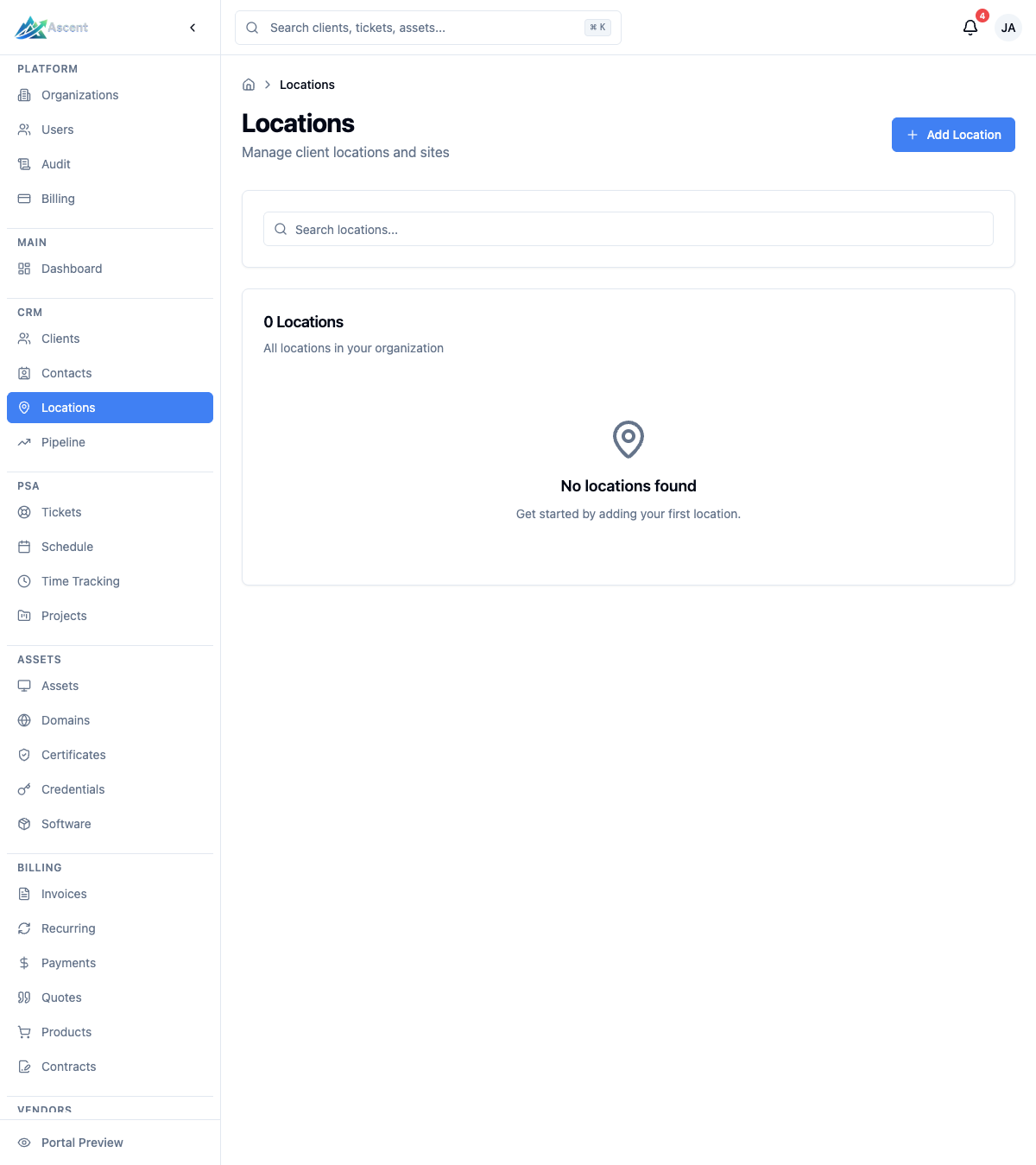
Overview
The Locations module lets you:
- Record a physical site (name, address, phone) for a client
- Track multiple locations per client
- Designate one location per client as the primary site
- See how many contacts and assets are linked to each location
- Drill into a location to view its contacts, assets, networks, and racks
- Tag locations and record free-form notes
Navigate to Locations
Go to CRM → Locations (/locations) in the left sidebar.
Viewing Locations
The list page shows a searchable, paginated table. Use the Search locations... box to filter by name, address, or city. The card heading shows the total location count, and pagination controls appear when there is more than one page.
If a client filter is active (set globally or via a URL parameter), only that client's locations are shown.
List columns
| Column | Description |
|---|---|
| Location | Location name. A Primary badge appears next to the client's primary location. |
| Client | The client this location belongs to (links to the client). |
| Address | The combined street address, city, state/ZIP, and country. Shows a dash when no address is set. |
| Phone | Phone number for the site, or a dash if none. |
| Contacts | Number of contacts assigned to this location. |
| Assets | Number of assets assigned to this location. |
Click any row to open the location's detail page.
Creating a Location
- Click Add Location.
- Under Client, select the client this location belongs to. (Required. The dropdown lists active clients.)
- Under Location Information, enter:
- Location Name (required) — e.g., "Main Office" or "Data Center"
- Phone (optional)
- Under Address, fill in any of the optional fields:
- Street Address
- City
- State/Province
- ZIP/Postal Code
- Country (defaults to
USA)
- Add optional Notes for the site.
- In the Settings card, toggle Set as primary location if this should be the client's default location.
- Click Create Location.
All address fields are optional — only a client and a location name are required.
Location Detail Page
Opening a location shows a header with the location name, a Primary Location badge (if applicable), and a link to the parent client. Back and Edit buttons appear in the top right.
A stats grid at the top shows four counts for the location: Contacts, Assets, Racks, and Networks.
Tabs
The detail page organizes related records into tabs:
| Tab | Contents |
|---|---|
| Overview | Address information, phone, and any notes for the location. |
| Contacts | Contacts assigned to this location. Includes an Add Contact button. |
| Assets | Assets at this location, with type, manufacturer, model, and serial number. Includes an Add Asset button. |
| Networks | Networks tied to this location, showing subnet, VLAN, DHCP status, and device count. Includes an Add Network button. |
| Racks | Racks at this location, with a link to view all of them. Includes an Add Rack button. |
Sidebar
The right sidebar shows a Details card (client, created date, last updated date), a Tags card when tags are present, and a Quick Actions card with shortcuts to add a contact, asset, network, or rack pre-linked to this location and client.
How Locations Relate to Other Records
- Client — Every location belongs to exactly one client. Deleting a client removes its locations.
- Contacts — Contacts can be assigned to a location, so you can see who works at each site.
- Assets — Assets can be assigned to a location, letting you track equipment by site.
- Networks and Racks — Networks and racks can be associated with a location for infrastructure documentation.
A location cannot be deleted while it still has associated contacts or assets — reassign or remove those records first.
Primary Location
Each client can have one primary location, which serves as its default site. You can set this when creating a location or change it later. Setting a location as primary clears the primary flag from any other location for that client.
Best Practices
- Use descriptive names — "NYC Office" reads better than "Location 1".
- Set a primary location — pick the client's main site so it is used as the default.
- Assign contacts and assets — link people and equipment to the right site to keep records organized.
- Record access notes — use the Notes field for parking, building codes, or entry instructions.
- Keep addresses current — update the address when a client relocates.