Schedule
The Schedule section is a single tabbed page that brings your personal work hours, time-off requests, team availability, org holidays, and a unified calendar together in one place.
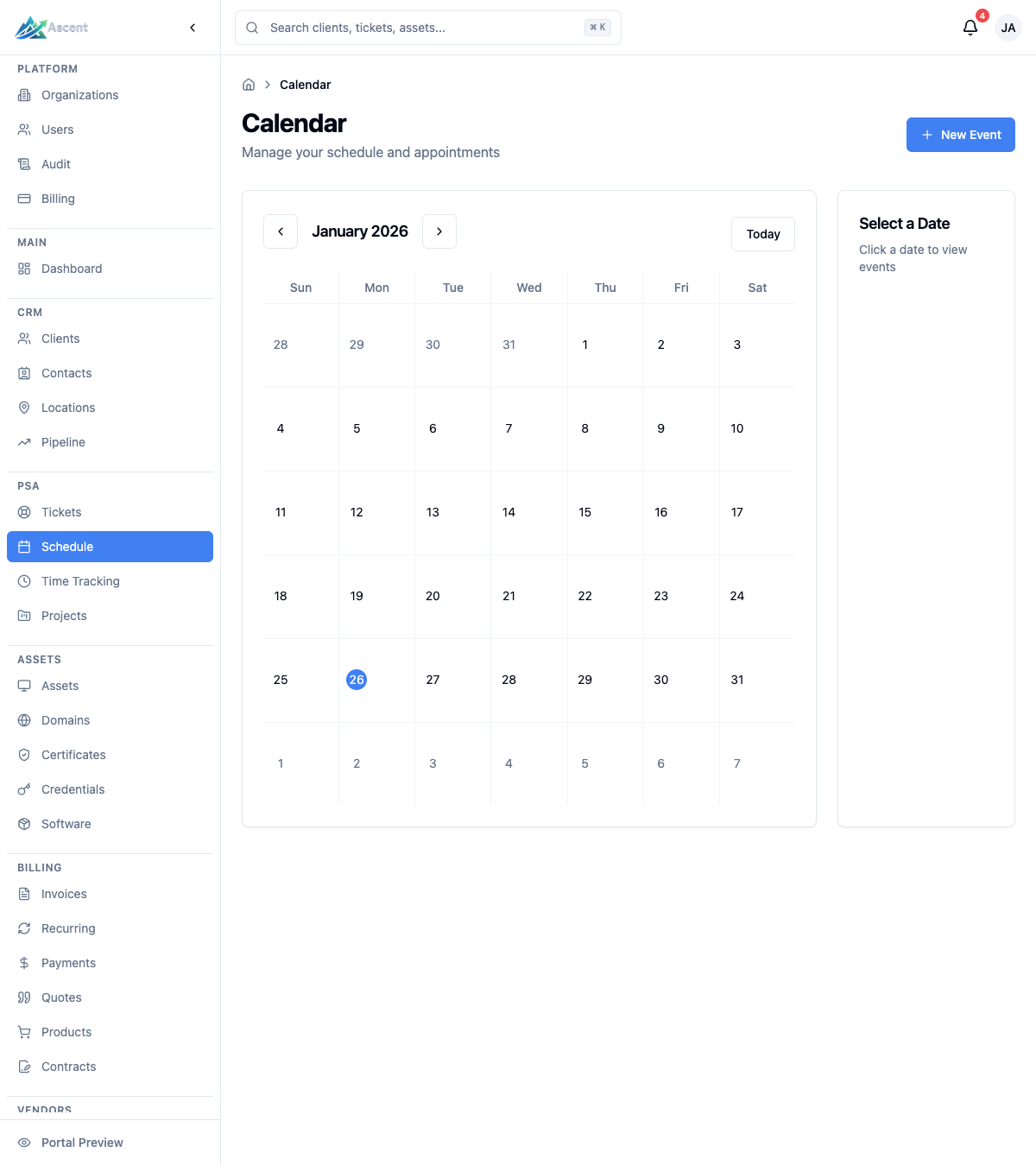
Overview
The Schedule section lets you:
- Set your own working hours, work days, and timezone for availability tracking
- Request, edit, and cancel time off, and track approval status
- See a live view of every team member's current availability
- Configure which US Federal holidays apply to your org and add custom org closures
- View a unified calendar that overlays work hours, time off, on-call coverage, holidays, and calendar events
Navigate to Schedule
Go to Team Management → Schedule in the left sidebar. The page opens on the Calendar tab by default. Switch tabs using the strip at the top of the page:
| Tab | What it shows |
|---|---|
| Calendar | Unified month/week calendar with toggleable overlays |
| Time Off | Your personal time-off requests |
| Team Availability | Live availability status for the whole team |
| My Schedule | Your work hours, work days, and timezone |
The Team Management group keeps the people-ops surfaces together: Schedule, Time Off, and On-Call. The Time Off sidebar item is a shortcut that opens the Schedule page directly on the Time Off tab.
Holidays & Closures is no longer a tab here — it is org-wide configuration
and now lives under Settings → Organization → Holidays & Closures
(/settings/org/holidays). The federal-holiday and closure dates you set there
still drive the Holidays & closures overlay on the Calendar tab.
On-call rotations live on a separate On-Call page (Team Management → On-Call). Selecting the on-call entry from the Schedule URL redirects you there.
There is no longer a separate "Time Off Requests" nav entry. Owners and admins open the team approval queue from the Time Off tab using the Manage requests button. See Who approves time off for who can act on requests.
Calendar
The Calendar tab combines all time-related data into a single view. Use the toolbar to switch between Month (default) and Week views, step backward and forward with the arrows, or jump to the current date with Today.
Overlays
A Show: row of toggles controls which layers appear on the calendar. Each can be turned on or off independently:
| Overlay | Description |
|---|---|
| My work hours | Shaded blocks for your configured work hours |
| My time off | Your approved and pending time off |
| Team time off | Other members' time off, color-coded per person |
| On-call coverage | Rotation-generated shifts and exceptions, labeled with who is on call |
| Holidays & closures | Federal holidays and org closures |
| Calendar events | Meetings, appointments, and other scheduled events |
When Team time off is on, a Team: legend appears below the calendar mapping each color to a member.
My Day sidebar
A My Day panel beside the calendar summarizes today's on-call windows, time off, and events for you.
Interacting with the calendar
- Click a day to open the Day Details dialog, which shows your schedule for that day, on-call coverage (including overrides and exceptions), time off, and events.
- From a day with no time off, click Request time off to submit a request directly from the calendar.
- Click a time-off block to open a details popover with the member, type, dates, and status.
- Click an on-call block to open a details popover showing who is on call, the start and end times of the window, and any note.
Calendar events
If you have the calendar create permission, a New Event button appears in the toolbar. Events are saved to your default calendar.
- Click New Event (or open an existing event to edit it).
- Fill in the event fields:
| Field | Notes |
|---|---|
| Title | Required |
| Type | Meeting, Appointment, Task, Reminder, or Other |
| Date | Required |
| Start Time / End Time | The hours the event runs |
| Client (optional) | Optionally associate the event with a client |
| Repeat | Does not repeat (default), Daily, Weekly, Monthly, or Yearly |
| Location | Optional |
| Description | Optional |
- Save the event with Create Event (or Save Changes when editing). Editing and deleting events require the corresponding calendar update and delete permissions; the Delete button only appears when editing an existing event.
Holidays & Closures
Holidays & Closures now lives under Settings → Organization → Holidays & Closures
(/settings/org/holidays), not on the Schedule page. There you configure the
holidays and closure days that apply to your organization. Use the year selector
to view dates for a specific year. The dates you set here drive the Holidays &
closures overlay on the Schedule Calendar tab.
US Federal Holidays
Federal holiday dates come from the US Office of Personnel Management (OPM). For each holiday you can:
- Toggle it on or off for your org (admins only)
- Rename it to match your internal terminology, or reset it back to the OPM default
A badge shows how many federal holidays are currently enabled.
Org Custom Closures
Add company-specific closure days such as retreats or down days. Click Add Closure and provide:
| Field | Notes |
|---|---|
| Label | Required (e.g. Company Retreat) |
| Date | Required |
| All day | When off, you can set a Start Time and End Time |
| Repeats annually | Closure recurs on the same month/day each year |
Existing closures can be edited or deleted. Managing federal holiday settings and closures requires the on-call schedule override permission, which is granted to Owners and Admins.
Time Off
The Time Off tab lists your time-off entries and lets you submit new requests.
Requesting time off
- Click Request to open the new request form.
- Choose a Type: Vacation, Sick Leave, Holiday, or Other.
- Set a Start Date and End Date (both required), and optionally a Start Time and End Time for partial days.
- Add an optional Note.
- Click Submit Request.
If the request overlaps an existing approved entry, a warning appears, but you can still submit it.
If the requested dates overlap a shift you are scheduled on call for, a heads-up appears after you submit so you (and your approver) can arrange coverage before the time off is approved. The request is still created — the warning is informational.
Status and managing requests
Each entry shows its type, date range, optional note, and a status badge:
| Status | Meaning |
|---|---|
| Pending | Awaiting manager approval |
| Approved | Approved by a manager |
| Denied | Rejected by a manager |
| Expired | The request's end date passed before anyone approved or denied it |
You can edit (pencil icon) or cancel (X icon) your own pending requests. Owners and Admins can additionally edit or cancel approved requests.
Owners and Admins also see a Manage requests button at the top of the Time Off tab. It opens the team time-off management dashboard, where pending requests can be reviewed and approved or denied (with coverage warnings) — the same queue that used to have its own "Time Off Requests" nav entry. Who can actually act on a request is governed by Who approves time off.
On-call coverage gate
When a pending request overlaps shifts the requester is on call for, the approval queue flags it so the conflict is visible before you decide. If approving the request would leave an on-call window with no other coverage (no other member is scheduled or assigned via an override for that window, and any candidate isn't themselves on approved leave), the approval is blocked. A dialog lists the uncovered windows and offers Approve anyway — choosing it records your explicit acknowledgement and proceeds. Denials are never gated.
This check is enforced server-side, so it applies whether you approve from the
dashboard or via the API: a plain approval that would create a gap is rejected
with a COVERAGE_GAP response until it is resubmitted with the acknowledgement
flag.
A pending request whose dates have fully passed is closed automatically as Expired by a background job that runs every hour, so stale requests don't linger in the list and approvers' inboxes are cleared of the now-moot approval prompt. Expired requests stay visible in your history for reference.
Time-off reminders
Ascent sends two automatic reminders around time off so nothing is missed:
- Approval reminder — if a request is still pending more than a day after it was submitted, the approvers are nudged again that it's awaiting a decision.
- Time off starting soon — the requester is reminded shortly before their approved time off begins.
Both arrive in-app and by email according to your notification preferences and are sent at most once per request. You can turn either off under the Time Off category on Profile → Notifications.
Who approves time off
Time-off requests are routed to the requester's manager first, with Owners and Admins as a fallback when no manager is set. Only the requester's direct manager (or an Owner/Admin) can approve or deny a request — and you can never approve your own. A manager is assigned by an admin on the Settings → Users page; see Managers and direct reports below.
Team Availability
The Team Availability tab is a live view of team members' current status. It auto-refreshes every five minutes and when you return to the browser tab; you can also click Refresh manually.
Who you see depends on your role: Owners and Admins see the whole organization, a manager sees themselves plus their direct reports, and a regular member sees only themselves. (See Managers and direct reports.)
Each member row shows their avatar, name, an availability indicator, and a short reason (for example, "Available now", "On-call (outside normal hours, available)", "Off hours — check their schedule", or "On time off — returns Mar 18"). Members are sorted available first, then on-call, then unavailable.
Filtering
Filter the list using the pill buttons, each showing a count:
| Filter | Includes |
|---|---|
| All | Every member |
| Available now | Members who are available (or have no schedule set) |
| On-call | Members currently on call |
| Unavailable | Members who are off hours or on time off |
Status badges on the right of each row read Available, Always on (no schedule configured), On-call, Off hours, or Time off.
Click any member to open a dialog showing their weekly work schedule — timezone, work hours, and work days. Owners and Admins also see that member's pending time-off requests there, plus a banner summarizing how many pending requests are awaiting approval, with a quick link to the Time Off tab.
Managers and direct reports
Each member can have a manager. The manager / direct-report relationship controls who can see and approve another person's schedule, time-off, and availability:
| You are… | You can see / approve for… |
|---|---|
| Owner / Admin | Everyone in the organization |
| A manager | Yourself and your direct reports |
| A member | Yourself only |
Managers are set by an Owner or Admin on the Settings → Users page: open a member's row menu, choose Manager, and pick another member (or No manager to clear it). A member with no manager rolls up to Owners/Admins for visibility and time-off approval.
My Schedule
The My Schedule tab sets the working hours used for your availability tracking.
| Field | Description |
|---|---|
| Timezone | Your IANA timezone (e.g. America/New_York) |
| Work Days | The days of the week you work (Sun–Sat) |
| Start Time | When your work day begins |
| End Time | When your work day ends |
Adjust the values and click Save Schedule (or Update Schedule if you already have one). Your schedule then drives your availability status on the Team Availability tab and the work-hours overlay on the calendar.
Subscribe from your calendar app
The Calendar Subscription card on the My Schedule tab lets you follow your on-call shifts and approved time off from Google Calendar, Outlook, or Apple Calendar — so your schedule shows up wherever you already work.
- Give the feed a name (e.g. "Outlook — work laptop").
- Choose what to include: on-call shifts, approved time off, or both.
- Click Create feed URL. The full subscription URL is shown once — copy it immediately.
- In your calendar app, add a calendar by URL / subscribe to calendar and paste the link. The calendar refreshes on its own schedule (typically every hour or so).
To stop a subscription, click Revoke next to the feed. Revoking immediately breaks any calendar using that URL.
The subscription link works without signing in — anyone who has it can read your on-call shifts and time off. Don't share it, and revoke it if it might have leaked. Each link is shown only at creation; afterward you'll only see a short prefix to help you identify it.
Tips
- Set your schedule first. Configuring My Schedule makes your availability accurate for the whole team; members without a schedule show as "Always on".
- Use overlays to declutter. Turn off layers you don't need on the Calendar tab to focus on what matters.
- Submit time off early. Pending requests need manager approval before they count as approved time off.
- Rename federal holidays to match your company's terminology so they read clearly across the org.