Tickets
Tickets are the core of service delivery in Ascent. Each ticket represents a support request, incident, or work item tied to a client, and tracks the full conversation, time logged, and linked assets. SLA targets are calculated behind the scenes from each ticket's priority and reported on the SLA analytics page.
Overview
The Tickets module lets you:
- Create, view, and manage tickets across all clients
- Filter and search the queue by priority, open/closed state, client, assignee, status, and category
- Switch between a List view and a drag-and-drop Kanban board
- Track customizable statuses, four priority levels, and categories
- Hold the full conversation thread (internal notes and public replies)
- Log time directly against a ticket and invoice billable time
- Link client assets, run checklists, and view a complete change history
- Add CC recipients (team members, contacts, or external emails) to ticket communications
- Merge duplicate tickets and split a ticket into a new one
- Create tickets automatically from inbound email
Navigate to Tickets
Go to PSA → Tickets (/tickets) to open the ticket queue.
The ticket queue
List view
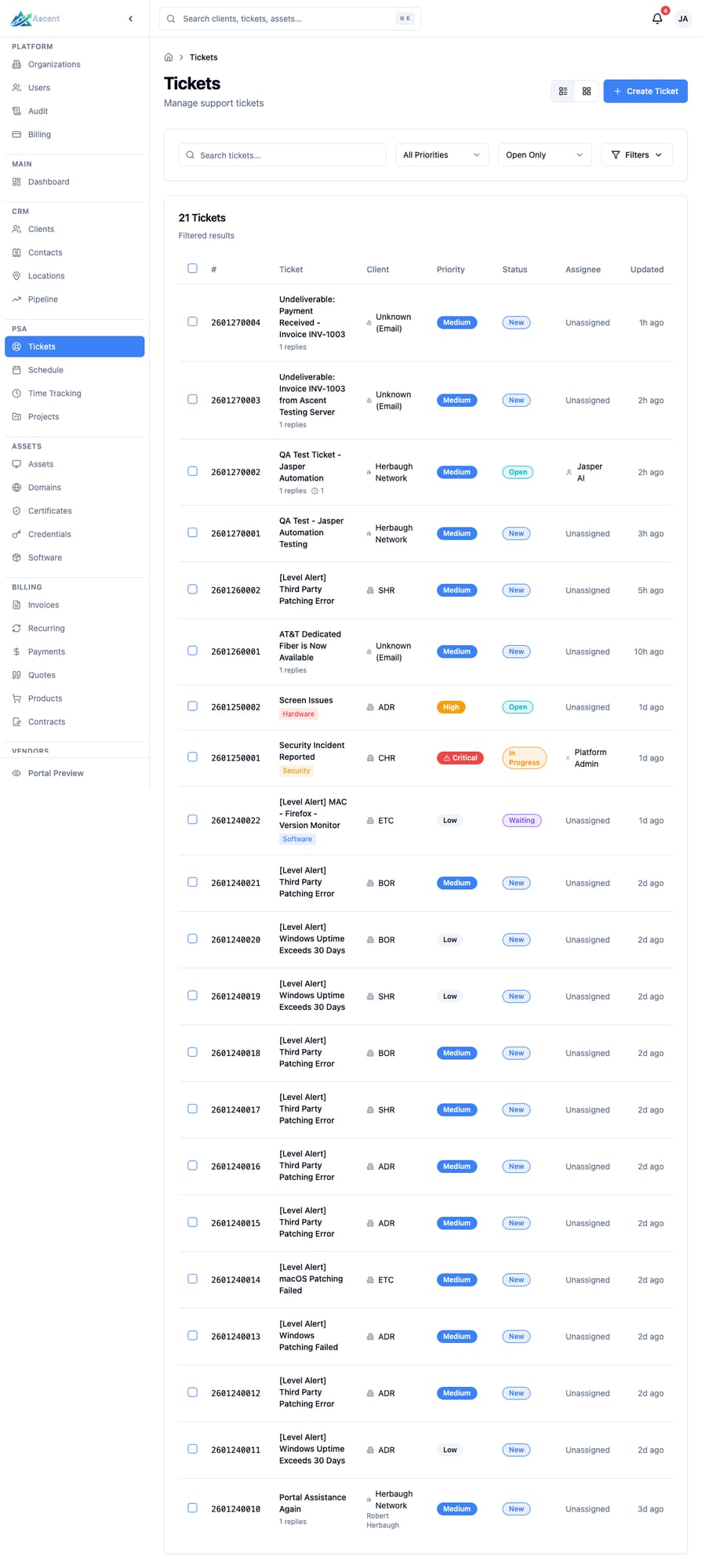
The List view shows a paginated table (25 per page) with these columns:
| Column | Description |
|---|---|
| Checkbox | Selects the ticket for a bulk action |
| # | The ticket number |
| Ticket | Subject, plus category, reply count, and time-entry count; a Merged badge appears if the ticket was merged into another |
| Client | The associated client (and contact name, if set) |
| Priority | Low, Medium, High, or Critical |
| Status | The current status badge (or No Status) |
| Assignee | Assigned team member, or Unassigned |
| Updated | Relative time since the last update |
By default the queue shows open tickets only. Tickets are sorted by number, newest first.
Kanban view
Use the layout toggle in the top-right of the page to switch to Kanban. The board shows one column per ticket status (plus a No Status column for tickets without a status), and you can drag a card from one column to another to change its status. If no statuses are configured, the board prompts you to set them up in Settings.
Filtering and search
The filter bar at the top of the List view provides:
- Search tickets… — free-text search
- All Priorities — filter by Low, Medium, High, or Critical
- Open/Closed — choose All (Open & Closed), Open Only, or Closed Only
- Filters — expands an advanced panel with Client, Assigned To (including Unassigned), Status, and Category filters
A badge on the Filters button shows how many advanced filters are active, and active filters appear as removable chips. Use Clear all filters to reset the advanced panel.
Saved views
Once you've dialed in a useful combination of filters and sort, you can save it as a named view and re-apply it later in one click — handy for queues you check every day, such as "My open P1s" or "Unassigned today".
Use the Saved Views menu in the ticket list header:
- Save current view… — captures the current filters (search, priority, open/closed, client, assignee, status, category) and sort under a name, with an optional description. Toggle Share with organization to make the view available to everyone in your org; leave it off to keep the view private (visible only to you).
- Apply a view — pick any view from the menu to instantly apply its filters to the list. Shared views are marked with a people icon, private views with a lock icon.
- Delete a view — use the trash icon next to a view you created.
Saving a view requires permission to create tickets, and deleting one requires permission to delete tickets. Only the person who created a view can edit or delete it — even when it's shared.
Bulk actions
Select one or more tickets with the row checkboxes to reveal the bulk-action bar. From there you can:
- Set Status — apply a status to all selected tickets
- Set Priority — apply a priority to all selected tickets
- Assign To — assign all selected tickets (or set to Unassigned)
- Merge — when two or more tickets are selected, open the merge dialog
Creating a ticket
- Click + Create Ticket to open the New Ticket form (
/tickets/new). - Under Classification, set the Status, Category, Priority, and Source. The default status is preselected and priority defaults to Medium.
- Under Ticket Details, enter a Subject (required) and an optional Description. The Description is a rich-text editor (bold, italic, lists, links, code blocks, and more), and an Attachments control lets you upload files directly on the create form — they are attached to the new ticket once it is created.
- Under Client Information, select the Client (required) and an optional Contact. The contact list loads after you pick a client.
- Optionally choose a Project to link the ticket to. Selecting a project sets the Client to match the project's client (a project belongs to one client), so the ticket and project stay consistent; choose No project to leave it unlinked. When you open the form from a project's Tickets tab the project is preselected, and you can still change it. The linked ticket appears under that project's Tickets tab.
- Set Assigned To using the searchable picker. Technicians are grouped by availability, and an on-call banner suggests the on-call agent when one is configured.
- Optionally expand Additional Options to set a Scheduled For date/time, a Due Date, and to toggle Billable and Onsite Visit Required.
- Fill in any custom fields your organization has defined for tickets. Required custom fields must be set before the ticket can be saved. See Custom Fields.
- Click Create Ticket. You are taken to the new ticket's detail page.
Ticket sources
Every ticket records how it originated. On the create form you can choose Manual, Email, or Portal. The system also sets sources automatically for tickets created from a Level RMM alert (LEVEL_ALERT), the API, inbound email, or a recurring schedule.
Priorities
Tickets use four priority levels:
| Priority | Badge |
|---|---|
| Low | Low |
| Medium | Medium |
| High | High |
| Critical | Critical (shown with a warning icon) |
Statuses
Ticket statuses are fully customizable per organization. Each status has a name, a color, and an isClosed flag, and one status is marked as the default for new tickets. When your organization first uses tickets, Ascent seeds these statuses:
| Status | Treated as closed? |
|---|---|
| New (default) | No |
| Open | No |
| In Progress | No |
| Waiting | No |
| Resolved | Yes |
| Closed | Yes |
You can add, rename, recolor, reorder, and delete statuses (see Ticket Customization under Admin). The List and Kanban views, filters, and bulk actions all use whatever statuses your organization has configured.
Merging is not a status. When a ticket is merged into another, it is moved to a closed status and flagged read-only with a banner linking to the primary ticket — see Merging tickets.
Categories
Categories group tickets by type and appear as a colored label. Default categories seeded for new organizations are General, Network, Hardware, Software, Email, and Security. You can manage them under Settings → Ticketing → Customization.
Working a ticket
The ticket detail page header shows the ticket number (click to copy), priority, status, and Billable / Onsite badges where applicable. From the header you can go Back, Merge, Split, or Edit the ticket. The page is organized into a tabbed main area and a sidebar.
Tabs
| Tab | Contents |
|---|---|
| Conversation | The description and the full reply thread, plus the reply composer |
| Time | Time entries, a total/billable/unbilled summary, and Add Time |
| Assets | Client assets linked to the ticket |
| Checklists | Checklists run against this ticket |
| History | Complete change history (field changes, status transitions, logged calls, and more) |
Sidebar
The sidebar contains a Status dropdown (changes status immediately), a Details card (client, contact, assignee, category, source, and dates), a CC Recipients card, and a Watchers card. When your organization has defined ticket custom fields, an editable Custom Fields card also appears.
To change a ticket's Project link after creation, click Edit in the header. The Edit Ticket form has a Project picker where you can link the ticket to a project, move it to a different project, or choose No project to unlink it. As on the create form, selecting a project keeps the Client consistent with the project's client.
Conversation: notes and replies
In the Conversation tab, the composer is a rich-text editor that supports @-mentions of team members and file attachments.
- Write your message.
- Toggle the switch to choose the type:
- Internal note — visible only to your team (highlighted in orange).
- Public reply — visible to the client and emailed to the ticket contact.
- Click Send Reply.
When you post a public reply, Ascent emails it to the ticket's contact (if they have an email) and records the first public reply as the ticket's first response time. Any CC recipients also receive the message. Internal notes are never sent to the client.
You can edit an internal note for up to 30 minutes after posting it. Public replies cannot be edited, because they have already been sent to the customer.
Canned responses
To avoid retyping the same answers, the composer has a Canned responses picker (next to the AI Suggest reply button). Open it to browse your reusable reply snippets — grouped by category — and click one to insert its text into the current draft. You can keep editing after inserting, combine several snippets, or layer a snippet on top of an AI-suggested reply.
Each snippet is either private (only you see it) or shared with your whole organization. Manage the library from Settings → Ticketing → Canned Responses (or the Manage canned responses… link at the bottom of the picker): give a snippet a name, an optional category, and a rich-text body, and choose whether to share it with the Shared toggle. Creating, editing, and deleting snippets follows your ticket-reply permissions; you can only edit or delete snippets you created.
On the management page each snippet appears as a card showing its name, a Shared or Private badge, its category (when set), and a Created by attribution, with a preview of the reply body. Use the card's edit and delete controls to maintain the library.
Canned responses are different from ticket templates (which pre-fill a whole new ticket) and from AI-suggested replies (generated on demand) — they are a manually curated library that's always available.
Logging time
Open the Time tab. The header shows the running summary — Total, Billable, and any Unbilled minutes.
- Click Add Time.
- Enter the minutes, an optional description, a date, and whether the entry is Billable.
- Save the entry.
Time entries display who logged them, the date, and Billable / Billed badges. Unbilled entries can be deleted; entries that have already been invoiced (Billed) cannot. When a ticket has unbilled billable time, a Create Invoice button appears so you can generate an invoice from that time (grouped by ticket, individually, or as a summary).
Linking assets
In the Assets tab, click Link Asset to attach one of the client's assets to the ticket. Linked assets show their name and type and link through to the asset record; click the remove icon to unlink one.
Changing status
Use the Status dropdown in the sidebar to move a ticket through your workflow. If you move a ticket to a closed status while it still has incomplete required checklist items, Ascent warns you and asks for confirmation before closing.
CC recipients
Use the CC Recipients card to copy additional people on ticket communications. Click Add CC and choose one of three recipient types:
| Type | Description |
|---|---|
| Team | An organization member |
| Contact | A contact belonging to the ticket's client |
| External | Any external email address (with an optional name) |
CC recipients receive the relevant ticket emails alongside the contact. Team CCs (org members) can also receive internal notes; Contact and External CCs only receive public replies.
Watchers
Use the Watchers card to have any email address follow a ticket and receive a notification when it changes — without making that address a CC recipient on every message. Type an email and click the + button (or press Enter) to add a watcher.
Each watcher has three independent toggles controlling which events email them:
| Toggle | Notifies the watcher when… |
|---|---|
| On reply | a public reply is posted to the ticket |
| On status | the ticket's status changes (including reopen) |
| On resolve | the ticket is moved to a closed/resolved status |
All three default to on for a newly added watcher, so a watcher hears about everything until you turn an event off. Internal notes are never sent to watchers — only public replies trigger the On reply notification. Adding, removing, and editing watchers requires the tickets · update permission and is recorded in the audit log.
CC Recipients vs. Watchers — when to use each
These two cards look similar but serve different purposes, and Ascent keeps them separate on purpose. Each card carries a one-line description in the UI; the table below is the fuller comparison.
| CC Recipients | Watchers | |
|---|---|---|
| What it is | People copied on ticket emails | Email addresses subscribed to ticket events |
| Identity | Typed — a team member, a client contact, or an external email | A bare email address (no identity) |
| Internal notes | Team CCs receive them; contacts/external do not | Never — watchers only ever get public replies |
| What triggers a message | The ticket's reply/note emails as they are sent | Per-watcher toggles: On reply, On status, On resolve |
| Per-event control | No — determined by recipient type | Yes — three independent toggles per watcher |
Rule of thumb: add a CC recipient when someone should be copied on the ticket's email conversation (and, for team members, see internal notes too); add a watcher when an address just needs to be pinged about specific events without joining the email thread. The one place they overlap is an external email that should hear about public replies — either a watcher with On reply on, or an External CC, achieves that.
Ticket history
The History tab is a single, newest-first timeline of everything that has happened on the ticket: field and status changes, SLA events, and phone calls logged against the ticket. When you log a call from the ticket (see Logging a call), it appears here right away — no page refresh needed — showing the direction, duration, and your summary, so the ticket's record stays complete alongside the client's communication timeline.
Merging tickets
When several tickets cover the same issue, merge them into one primary ticket.
You can start a merge two ways:
- From the Tickets list: select two or more tickets, then click Merge in the bulk-action bar.
- From a ticket detail page: click Merge in the header.
In the merge dialog, choose the primary ticket (the one that stays active) and confirm the tickets to merge in. You can merge up to 10 secondary tickets at once, and all tickets must belong to the same client.
After a merge:
- The secondary tickets' replies, time entries, attachments, assets, tags, and CC recipients are consolidated into the primary ticket.
- Each merged ticket is moved to a closed status, becomes read-only, and displays a banner linking to the primary ticket. You can no longer reply to it, log time on it, or link assets to it.
- The primary ticket lists the tickets that were merged into it, and the merge is recorded in its history.
Splitting tickets
When one ticket contains separate issues, split part of it into a new ticket. On the ticket detail page, click Split in the header. In the split dialog you set the new ticket's subject, description, priority, assignee, and category, and select which replies, time entries, attachments, assets, and tags to carry over.
When you split a ticket:
- A new ticket is created from the selected content.
- Selected replies and attachments are copied; selected time entries are moved (already-billed time cannot be moved).
- The two tickets reference each other so the relationship is preserved.
Email-to-ticket
Ascent can create and update tickets directly from email (configured under Admin → Integrations with your inbound email or Microsoft 365 setup).
- An inbound message that matches an existing ticket is added to that ticket as a reply. Matching tries RFC822 message-threading headers (
In-Reply-To/References) first, then a[Ticket #N]subject match, and finally an exact subject match against recently updated tickets. - A message with no match creates a new ticket with
Emailas its source. The email subject (with anyRe:/Fwd:prefix stripped) becomes the ticket subject, the body becomes the first reply, and any attachments are stored on the ticket. New email tickets default to Medium priority. - Ascent matches the sender to an existing contact or client where possible. When the sender can't be matched — no contact, no default client, and no client whose domain matches the sender's — the ticket is filed against a shared, locked Unknown (Email) client. This is a holding bucket, not a real customer: it can't be renamed, edited, archived, or deleted, and it never appears in client lists, pickers, customer counts, or reports, so it can't be mistaken for or billed as a real client.
Triaging unmatched email tickets
Tickets sitting on the Unknown (Email) client are worked down from the Tickets page:
- Open the Needs triage filter on the Tickets list (also linked from the Unknown client) to see every ticket awaiting a real client.
- Open a ticket and choose Reassign to client in the triage banner.
- Pick the correct client. Optionally, tick the option to add the original email sender as a contact on that client in the same step, so future email from that address matches automatically.
Reassigning moves the ticket onto the chosen client through the normal update path, so the change is recorded in the ticket's history. The Unknown (Email) client is never deleted — it stays as the bucket for the next unmatched message.
Ticket templates
A ticket template captures the reusable parts of a ticket so they don't have to be retyped each time. In addition to the subject, description, priority, and category, a template can carry these optional defaults that are applied to every ticket created from it:
- Default status — the ticket status the new ticket starts in.
- Default assignee — the technician the ticket is assigned to (must be a member of your organization).
- Default custom-field values — preset values for any of your ticket custom fields, so a template can pre-fill the fields your workflow depends on.
Defaults degrade gracefully: if a referenced status, assignee, or custom field is later deleted (or a custom field is repurposed to another entity type), that default is simply skipped when the ticket is created rather than blocking it. Duplicating a template copies all of its defaults.
Ticket templates are currently managed through the API rather than a dedicated settings screen.
Recurring tickets
Ascent supports recurring tickets: a schedule that automatically generates tickets from a ticket template for a client at a set cadence — Daily, Weekly, Biweekly, Monthly, Quarterly, or Yearly. A schedule references a template (which supplies the subject, description, priority, category, and any default status, assignee, and custom-field values) and can carry linked assets onto each generated ticket. This is useful for routine maintenance such as monthly patching or quarterly reviews.
Like ticket templates, recurring-ticket schedules are currently managed through the API rather than a dedicated settings screen.
SLA tracking
Ascent measures two SLA targets per ticket, derived from its priority:
- Response — time to the first public reply.
- Resolution — time until the ticket reaches a closed status.
Default targets (used unless overridden by your organization's SLA settings or a client contract) are:
| Priority | Response target | Resolution target |
|---|---|---|
| Critical | 30 minutes | 4 hours |
| High | 1 hour | 8 hours |
| Medium | 4 hours | 24 hours |
| Low | 8 hours | 48 hours |
SLA timers can respect business hours (by default 09:00–17:00, Monday–Friday) so off-hours don't count against targets. Business hours are interpreted in your organization's timezone (set under Settings → Organization), and full-day holiday closures (US Federal holidays and any all-day closures you've configured) are skipped when the SLA clock counts business minutes — so due dates land correctly regardless of where your team works. Each target is evaluated as one of:
| SLA status | Meaning |
|---|---|
| OK | On track |
| At risk | Less than 20% of the SLA window remains |
| Breached | The target passed before it was met |
| Met | Completed within the target |
For organization-wide SLA performance, see the SLA analytics page under Analytics.
Reusable SLA policies
Instead of authoring a billing contract just to set SLA targets, you can define
named SLA policies ("Gold", "1-Hour Response", …) once and assign them to
clients and contracts. Manage them on the Policies tab of the Settings → Ticketing → SLA
hub (requires the sla_policies permission; members can view, Admins/Owners
manage).
A policy carries the same targets as a contract — response time, resolution time, optional business hours and support days, and an optional timezone that overrides the org timezone for that policy's tickets. Any field you leave unset falls back to your organization's per-priority default.
Per-priority targets. A policy's response/resolution times apply to every ticket priority by default. You can optionally enable per-priority targets to set distinct response/resolution times for Critical, High, Medium, and Low — matching the org Defaults. For a given ticket, Ascent uses that priority's target; any field you leave blank falls back to the policy's flat target, and then to the org per-priority default. A policy can even define only per-priority targets with no flat target. Policies created before this option was added are unchanged — their single target continues to apply to all priorities.
Assigning a policy. Open a client's Edit page and pick an SLA policy under SLA Policy; a contract can likewise reference a policy instead of inline SLA fields. When a ticket's SLA is calculated, Ascent resolves the targets in this order (first match wins):
- The ticket's explicit contract's inline SLA times.
- The ticket's explicit contract's linked SLA policy.
- The client's active contract's inline SLA times.
- The client's active contract's linked SLA policy.
- The client's directly-assigned SLA policy.
- Your organization's per-priority defaults.
Because contract-inline times sit at the top, existing contract SLAs keep working exactly as before — policies only fill the gap where no contract supplies targets. Deleting a policy simply clears the assignment and the ticket falls back to the next source; an inactive policy is skipped during resolution.
SLA escalation policies
By default, when a high-priority ticket breaches its SLA, Ascent reassigns it to the first admin and notifies the assignee, admins, and owners. You can replace that single default with your own escalation policies on the Escalations tab of the Settings → Ticketing → SLA hub.
An escalation policy is a named, ordered list of steps that fire automatically as a ticket approaches or passes its SLA:
-
Match a policy to tickets by priority, client, and/or category. Leave a matcher blank to mean "any". When several policies match a ticket, the most specific one (the one with the most matchers set) is used.
-
Each step runs at a chosen offset — a number of minutes after at-risk or after breach — and performs one action:
- Reassign ticket — to a specific technician, or to the first admin if you leave the target blank.
- Bump priority — to a chosen priority, or up one level by default.
- Notify a user — send an in-app/email notification to one person.
- Notify a role group — notify every member with a given role (Owner, Admin, or Member).
After at-risk steps fire once a ticket is flagged at risk — that is, an assigned ticket within roughly 30 minutes of its target. For unassigned tickets, or to act earlier, use after breach steps, which apply to every breached ticket the policy matches.
Each step fires exactly once per ticket, so a long-running breach won't spam the same action every few minutes, and every escalation action is written to the audit log. Inactive policies are kept but never executed. Viewing policies is available to all members; creating, editing, and deleting them requires admin access.
Best Practices
- Triage quickly. Set a clear priority and status when a ticket arrives so SLA timers and the queue reflect reality.
- Keep notes internal until ready. Use Internal note while diagnosing, then switch to Public reply when you communicate with the client.
- Log time as you work. Mark entries billable where appropriate so you can invoice straight from the ticket.
- Merge duplicates early. Pick the most detailed ticket as the primary so the consolidated history stays useful.
- Use templates for repeat work. Pair ticket templates with recurring schedules for predictable, repeating tasks.