Settings
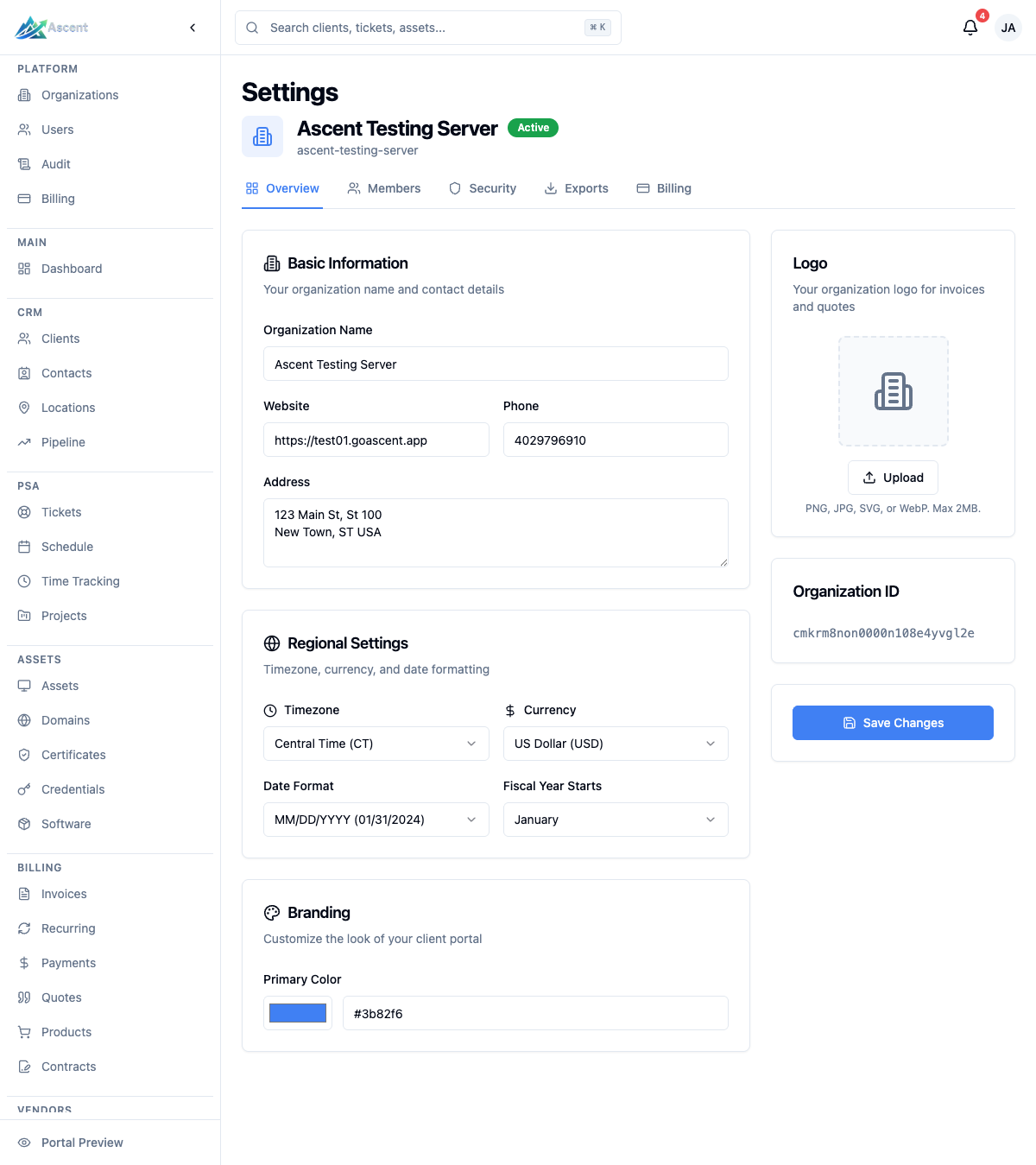
Organization settings live in the Settings area, which opens a categorized left-hand menu — Organization, Users & Access, Ticketing, Security & API, Email, AI, and Assets. Each setting is its own page under /settings/{category}/{slug}. This page covers the core organization settings: your organization profile, members, email delivery, security policy, billing, and API keys.
Overview
The Settings page lets you:
- Edit your organization's name, contact details, and mailing address
- Set regional defaults (timezone, currency, date format, fiscal year start)
- Upload your logo and icon and choose a primary brand color
- Manage organization members (the Members page under Users & Access)
- Configure how outbound email is sent (default Ascent delivery, SMTP, or Microsoft 365)
- Set the organization-wide security policy (SSO, MFA, sessions, password rules)
- Review your subscription plan, payment methods, and invoice history
Navigate to Settings
From the left sidebar, click Settings. This opens the Settings area, which lands on Organization → General (/settings/org/general).
Access requires the organization read permission, so the Settings entry only appears for roles that grant it (typically Owner and Admin). Individual pages may surface additional controls based on your role.
Core organization pages
The Settings left rail groups pages by category. The core organization settings covered here live under the Organization, Users & Access, Email, and Security & API categories:
| Page | Category | Path | What it covers |
|---|---|---|---|
| General | Organization | /settings/org/general | Organization profile, regional defaults, and branding |
| Billing & Plan | Organization | /settings/org/billing | Subscription plan, payment methods, and invoices |
| Members | Users & Access | /settings/users/members | Organization members management |
| Email Delivery | /settings/email/delivery | Outbound email delivery configuration | |
| Authentication | Security & API | /settings/security/authentication | SSO, MFA, session settings, and password policy |
| API Keys | Security & API | /settings/security/api-keys | Scoped API keys for programmatic access to the REST API |
General page
This is the default landing page (under Organization). It is organized into cards.
Basic Information
| Field | Notes |
|---|---|
| Organization Name | Required |
| Website | Optional URL |
| Phone | Optional |
| Address Line 1 / Address Line 2 | Street address |
| City, State, ZIP Code | Mailing address |
Regional Settings
| Field | Notes |
|---|---|
| Timezone | Choose from US zones, UTC, London, or Central European Time |
| Currency | USD, CAD, EUR, GBP, AUD, or NZD |
| Date Format | MM/DD/YYYY, DD/MM/YYYY, YYYY-MM-DD, or MMM D, YYYY |
| Fiscal Year Starts | The month your fiscal year begins |
Branding
- Logo — used on invoices, quotes, and the sidebar when expanded. PNG, JPG, SVG, or WebP, max 2MB.
- Icon — square image for the collapsed sidebar and browser tab. PNG, JPG, SVG, or WebP, max 2MB.
- Primary Color — used for buttons, links, and accents. Pick with the color swatch or enter a hex value (e.g.
#3b82f6).
Use Upload / Change to set an image and the trash icon to remove it.
A read-only Organization ID card shows your organization's unique ID. Click Save Changes to persist edits made on this page.
Members page
Under Users & Access → Members (/settings/users/members), each member is listed under an Organization Members card. From here you manage the people in your organization. See Users for full details on inviting, editing, and removing members.
Email Delivery page
Under Email → Email Delivery (/settings/email/delivery), you configure how Ascent sends outbound email for your organization. By default Ascent delivers email for you; you can switch to your own provider by configuring a valid SMTP or Microsoft 365 connection. For deeper integration setup, see the Integrations documentation.
Authentication page
Under Security & API → Authentication (/settings/security/authentication), you set your organization-wide authentication policy.
Single Sign-On (SSO)
- Email Domain — users with this email domain can be auto-provisioned via SSO (Just-In-Time provisioning).
- Password Authentication — toggle whether users can sign in with email and password.
- Configured Providers — add, edit, enable/disable, or delete SSO providers. Supported provider types are Microsoft (Azure AD), Google, Authentik, and Custom OIDC. Each provider dialog shows the Callback URL (Redirect URI) to paste into your identity provider, along with fields for Client ID, Client Secret, and (where applicable) Tenant ID or Issuer URL.
Multi-Factor Authentication
- Require MFA — when on, every member must have an MFA factor (authenticator app or security key) configured. Members without one are blocked behind a mandatory setup screen the next time they open the app — this applies to both password and SSO sign-ins, and currently takes effect immediately. API keys and Ascent platform support sessions are exempt. See Security settings for the full member experience. A Grace Period (Days) selector (No grace period, 1, 3, 7, or 14 days) records the intended enrollment window as organization policy.
- Allow Passwordless Login — lets users with security keys sign in without a password.
Session Settings
| Setting | Options |
|---|---|
| Session Timeout | 15 min, 30 min, 1 hour, 2 hours, 8 hours, 24 hours |
| Max Login Attempts | 3, 5, or 10 attempts |
| Lockout Duration | 5, 15, 30, or 60 minutes |
Password Policy
- Minimum Length — 8, 10, 12, or 16 characters.
- Toggles for Require uppercase letters, Require numbers, and Require special characters.
Click Save Security Settings to apply changes.
Billing & Plan page
Under Organization → Billing & Plan (/settings/org/billing), you'll find your Current Plan, Payment Methods, and Invoice History where you can view and download past invoices. For full billing module documentation (invoices, recurring billing, quotes, and more), see the Billing overview.
Related settings
Other configuration lives elsewhere in the Settings rail and under the Admin section of the sidebar:
- Roles & Permissions (Settings → Users & Access → Roles & Permissions) — define roles and what each can do
- Integrations (Admin → Integrations) — connect external services
Tips
- Set your Timezone and Date Format early so timestamps and scheduling display correctly across the app.
- Upload both a Logo and a square Icon so branding looks right in both the expanded and collapsed sidebar.
- Before you enable Require MFA, give members advance notice to enroll — un-enrolled members are blocked from the app immediately when it's turned on.
- You cannot turn off Password Authentication unless at least one SSO provider is enabled — this keeps a working sign-in method available.