Client Portal Overview
The Client Portal is a separate, customer-facing area of Ascent where your clients sign in to view their tickets, projects, invoices, quotes, contracts, assets, and shared documents. It runs under /portal/* with its own login and shell, and your clients only ever see their own organization's data.
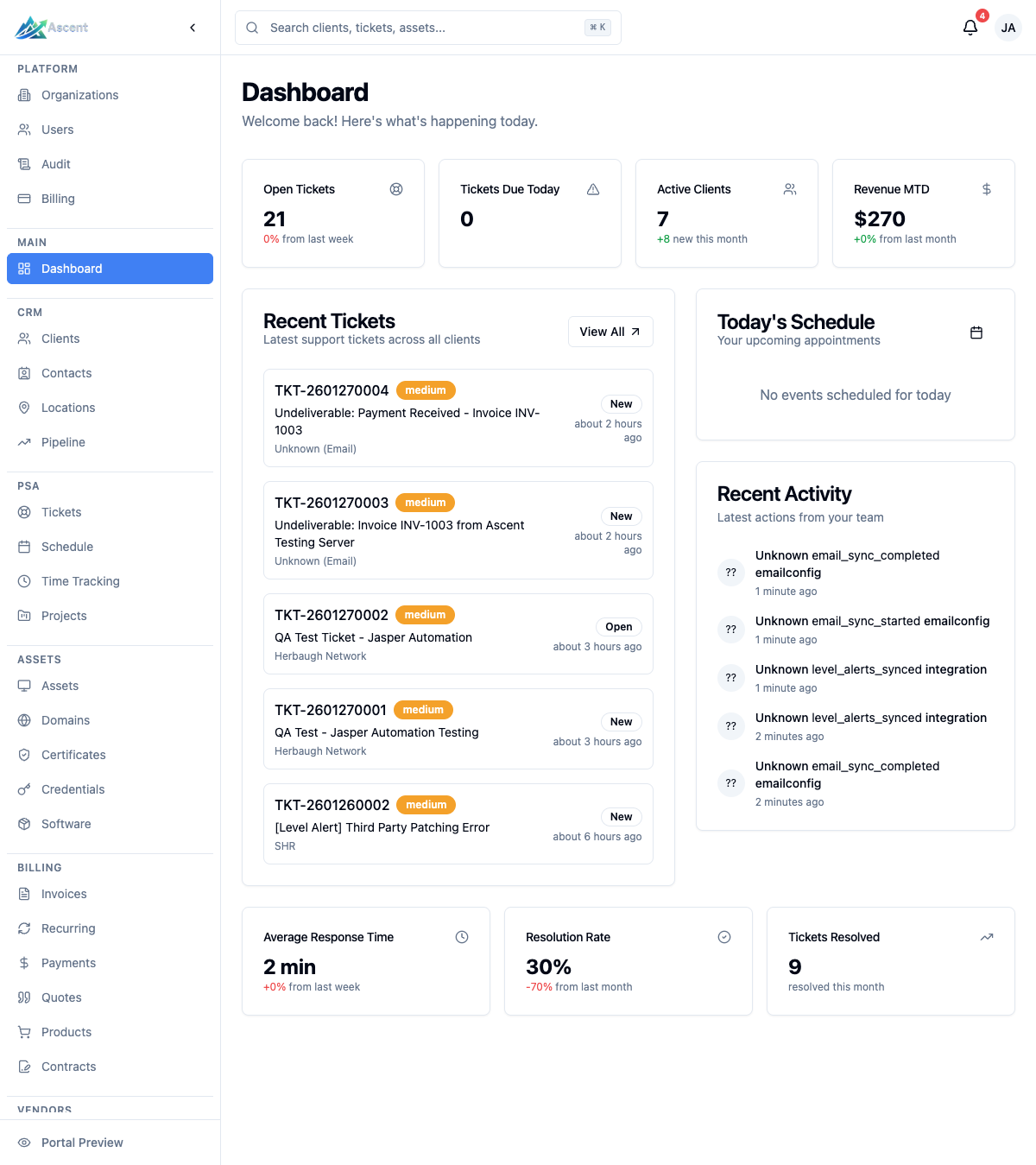
Overview
The portal lets your clients:
- See a personalized Dashboard with open tickets, pending invoices, pending quotes, and total assets at a glance.
- Submit and track support tickets, including replies and attachments.
- Follow the projects you are running for them, with status and completion progress.
- View invoices and pay them online by credit card via Stripe.
- Review and accept quotes sent to them.
- Review and sign contracts shared with them.
- Browse their tracked assets.
- Search and download shared documents.
- Manage their own profile and security settings (password and multi-factor authentication).
Accessing the portal
The portal lives at the /portal path of your Ascent instance (for example https://your-instance.goascent.app/portal). If your organization has white-label branding enabled, the portal shows your logo, name, and primary color in place of the default Ascent branding.
Signing in
The login flow starts by asking for the client's email address. After they click Continue, the portal looks up the account and shows the sign-in methods available to it:
| Method | When it appears |
|---|---|
| Password | When password sign-in is enabled for the account |
| Single sign-on (SSO) | When the client's organization has an SSO provider configured (Microsoft, Google, or a generic OIDC provider such as Authentik) |
If the account has multi-factor authentication (MFA) enabled, a second step prompts for one of:
- Authenticator app — a 6-digit TOTP code
- Security key or passkey — WebAuthn
- Recovery code — a one-time backup code
Clients who do not yet have an account can use the Request access link, and the Forgot password? link starts a password reset. There is no email "magic link" sign-in.
Portal navigation
The portal sidebar shows the following items. Most are gated by the contact's visibility for that resource — if a contact has no access to a resource, that item is hidden for them. Visibility is determined by the contact's Contact Type (see Section visibility by contact type below). Dashboard and Profile are always available.
| Item | Path | Gated by |
|---|---|---|
| Dashboard | /portal | Always shown |
| Tickets | /portal/tickets | Tickets visibility |
| Projects | /portal/projects | Projects visibility |
| Invoices | /portal/invoices | Invoices visibility |
| Quotes | /portal/quotes | Quotes visibility |
| Contracts | /portal/contracts | Contracts visibility |
| Assets | /portal/assets | Assets visibility |
| Documents | /portal/documents | Documents visibility |
| Profile | /portal/profile | Always shown |
The dashboard
The dashboard greets the client by name and organization and shows four summary cards that link to the matching section:
| Card | What it counts |
|---|---|
| Open Tickets | Tickets whose status is not closed |
| Pending Invoices | Invoices that are sent or overdue |
| Pending Quotes | Quotes that have been sent |
| Total Assets | Assets visible to the client |
Below the cards, a Quick Actions row offers New Ticket and View Documents shortcuts, and two Recent Tickets and Recent Invoices lists show the latest items with a View all link to the full section.
What clients can do
Tickets
Clients can open new tickets, follow their existing tickets, and add replies and attachments. See Portal Tickets for details.
Projects
Clients can see the projects you are running for them — each project's status, key dates, and task-completion progress — in a read-only list and detail view. Internal financials (budgets, cost, and profitability) are never shown in the portal. See Portal Projects for details.
Invoices
Clients can view their invoices and pay open ones online by credit card. The Pay button appears for invoices that are sent, overdue, or partially paid and still have a balance, and it sends the client to Stripe Checkout. See Portal Invoices for details.
Quotes
Clients can open and review quotes you have sent, and accept a quote that is still in the Sent state with an Accept Quote button. See Portal Quotes for details.
Contracts
Clients can view contracts shared with them, and sign a contract that is awaiting signature by drawing a signature in the Sign Contract section. See Portal Contracts for details.
Assets
Clients can browse the assets tracked for their organization. See Portal Assets for details.
Documents
The Documents page lists shared documents with a search box and a category filter, and clients can download files. See Portal Documents for details.
Profile and security
The Profile page lets clients update their own contact details and manage account security, including changing their password and setting up multi-factor authentication (authenticator app, security keys/passkeys, and recovery codes). See Portal Profile for details.
Feedback
Customer satisfaction (CSAT) feedback is collected through a dedicated, link-based form rather than a portal menu item. After a ticket is resolved, the customer receives a feedback link that opens a star-rating page (with an optional comment) for that specific ticket. The link is single-use and expires, and no portal login is required to submit it. See Portal Feedback for details.
Section visibility by contact type
Which portal sections a contact can see — and whether they see all of the client's records or only their own — is determined by the contact's Contact Type, set on the contact record in the org app. The visibility model is fixed per type:
| Contact Type | Tickets | Documents | Invoices | Quotes | Contracts | Assets | Projects |
|---|---|---|---|---|---|---|---|
| Primary | All | All | All | All | All | All | All |
| Billing | All | All | All | All | All | None | All |
| Technical | All | All | None | None | None | All | All |
| Emergency | All | All | None | None | None | None | None |
| Other | Own | Own | None | None | None | None | None |
"All" means the contact sees every record for their client; "Own" means only records tied to that contact; "None" hides the section entirely.
Co-managed IT access
On Enterprise plans, your team can grant an individual contact Co-Managed IT Access (a Co-Managed IT Access switch on the contact record). This is for a client's internal IT staff who collaborate with you in the portal: the contact sees all of their company's tickets — regardless of their contact type — and can triage them by setting the priority, status, and category. It affects tickets only; visibility for documents, invoices, quotes, contracts, assets, and projects still follows the contact-type matrix above. See Portal Tickets for what co-managed contacts can do.
Security and data isolation
- Each client only sees their own organization's data.
- Section visibility is driven by each contact's Contact Type (see the matrix above), so your team controls which sections a portal contact can reach by choosing the right type for them.
- Clients can secure their own accounts with multi-factor authentication from the Profile page.
Configuring the portal
Portal access is managed by your team. A contact must have Portal Access enabled on their contact record before they can sign in, and their Contact Type governs which sections they see. The Settings → Users & Access → Client Portal page is where you review and approve self-service access requests. White-label branding (logo, icon, name, and primary color) is configured under Settings → Organization → General. See the Client Portal configuration guide for setup details.